GETTING STARTED
What is the ESS Portal?
The Employee Self Service (ESS) Portal is your personal workspace within INTRIX's system. From your phone or tablet, you can check in and out, view your attendance records, request time off, chat with your team, and access the Employee Handbook — all without needing an Odoo licence.
What You Need
- A smartphone or tablet (iOS or Android)
- A mobile browser (Safari, Chrome, or Firefox)
- Your INTRIX login credentials (email and password)
- An internet connection (WiFi or mobile data)
No app installation is required. The ESS Portal runs entirely in your browser.
Accessing the Portal
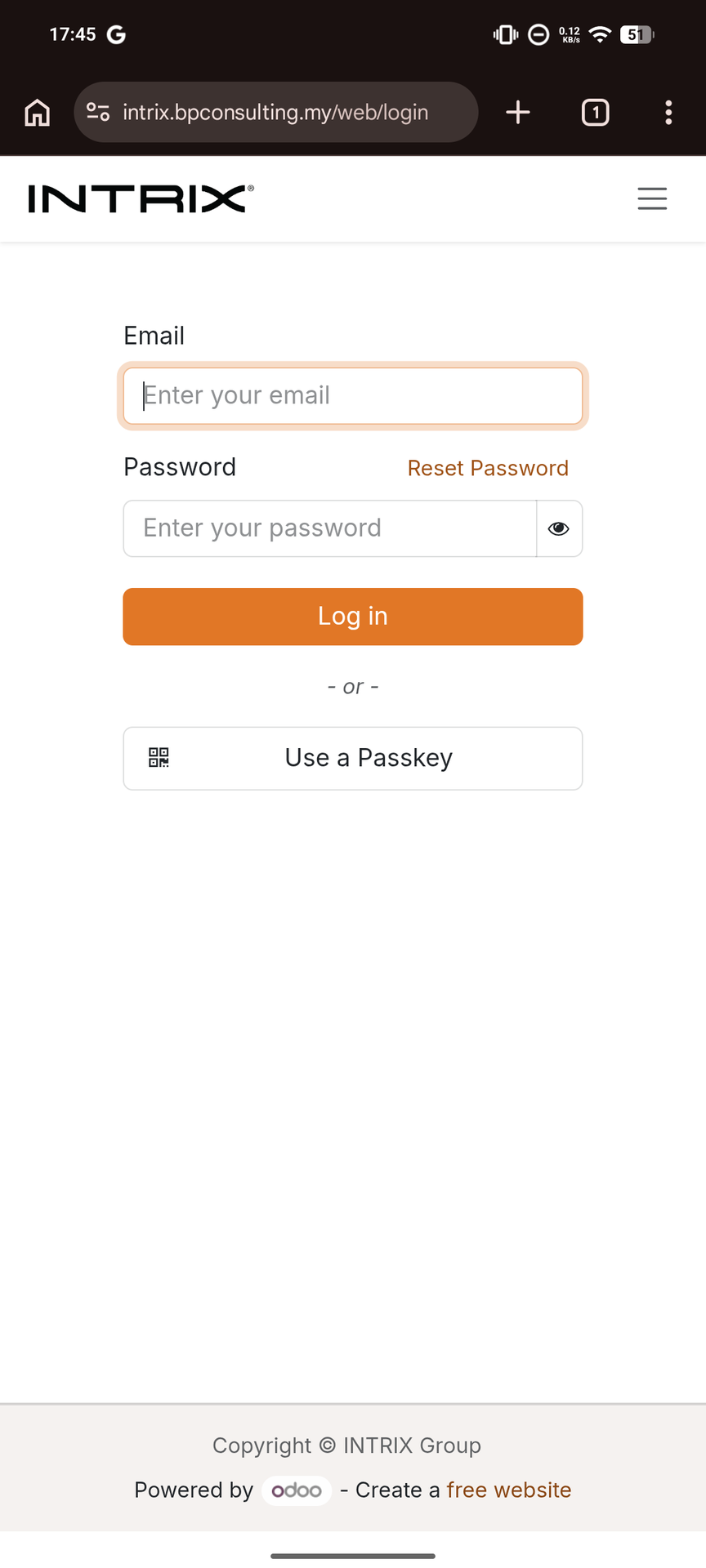
Step 1 - Open your browser
Open Safari, Chrome, or any browser on your phone. In the address bar, type:
Then tap Go or the Enter key.
Step 2 - Log in
You will see the INTRIX login screen. Enter your work email address and your password, then tap Log In.
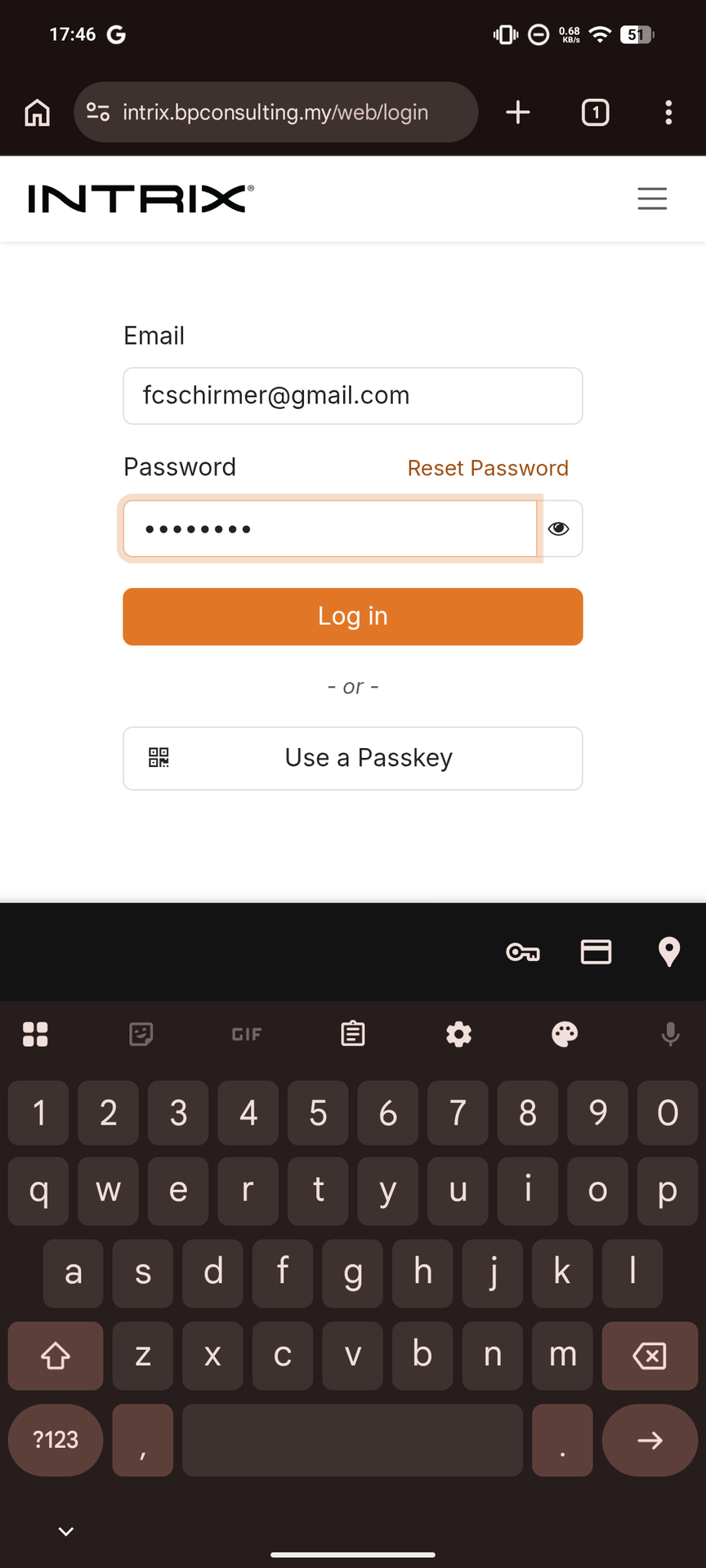
If you have forgotten your password, tap Reset Password and follow the instructions sent to your email.
Step 3 - The Portal Home
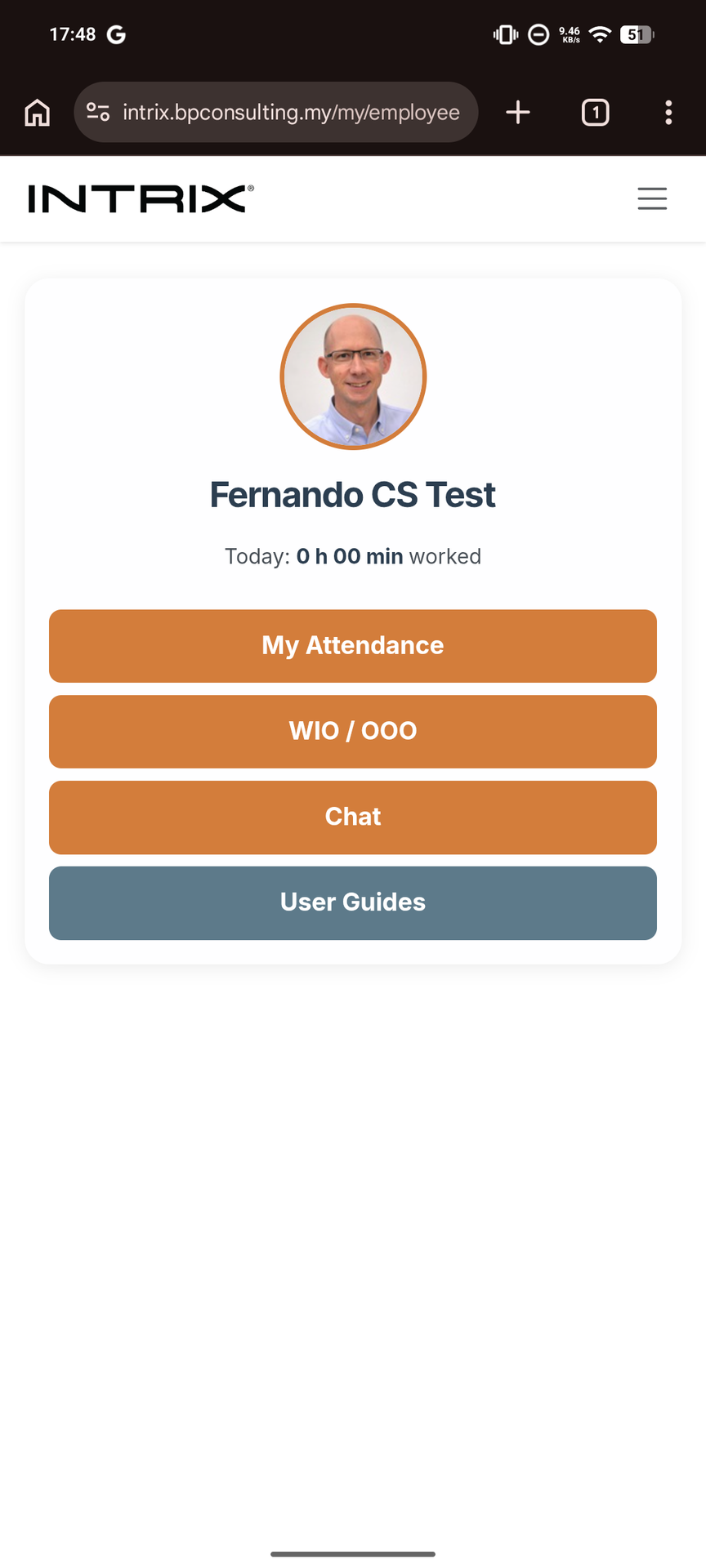
After logging in, you will land on the Portal Home screen. From here you can navigate to all your self-service features using the menu or the tiles shown on screen.
Adding the Portal to Your Home Screen
For faster access, you can save the portal as a shortcut on your phone's home screen — it will look and behave like an app.
On iPhone (Safari)
- Open the portal in Safari.
- Tap the Share button at the bottom of the screen (the square with an arrow pointing up).
- Scroll down and tap Add to Home Screen.
- Tap Add in the top right corner.
On Android (Chrome)
- Open the portal in Chrome.
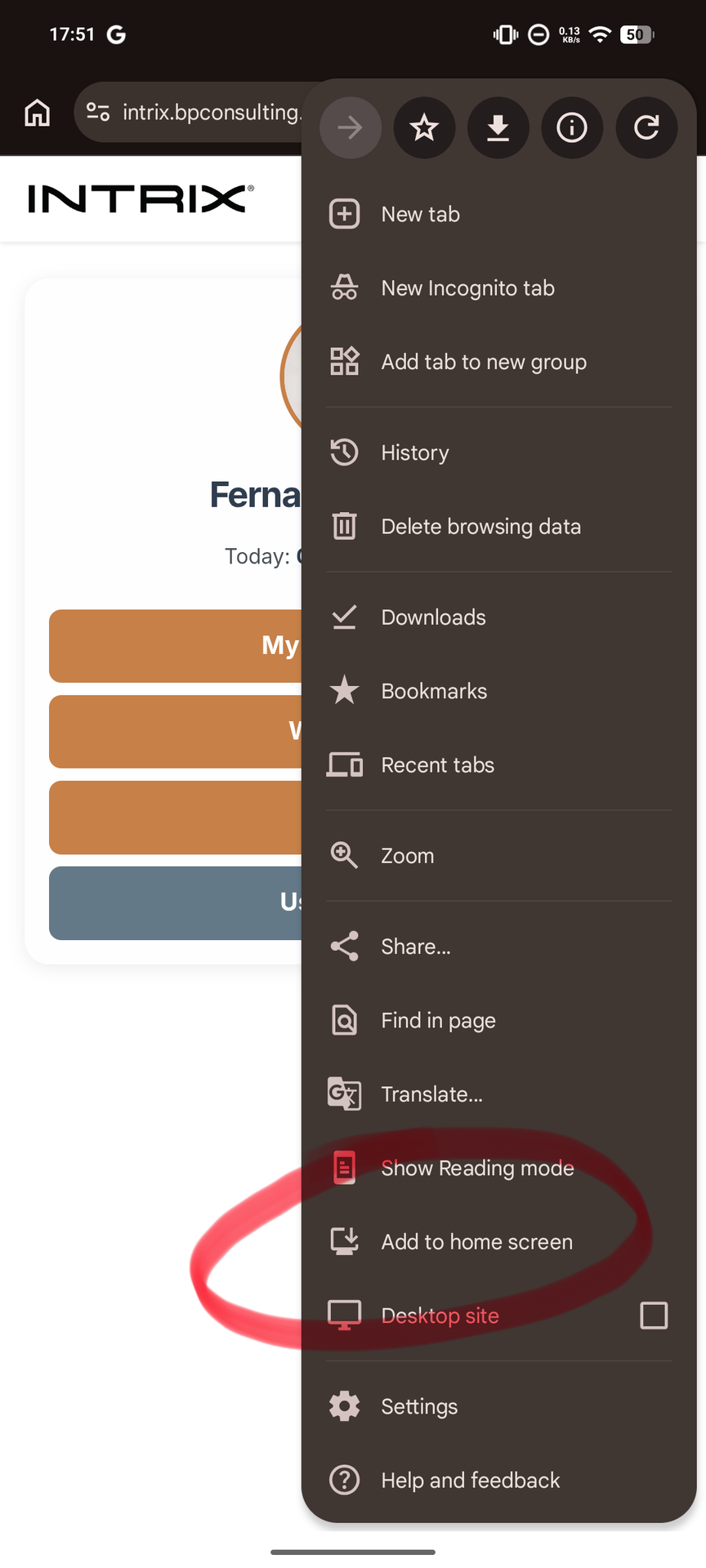
- Tap the three-dot menu in the top right corner.
- Tap Add to Home screen.
- Tap Add to confirm.
Logging Out
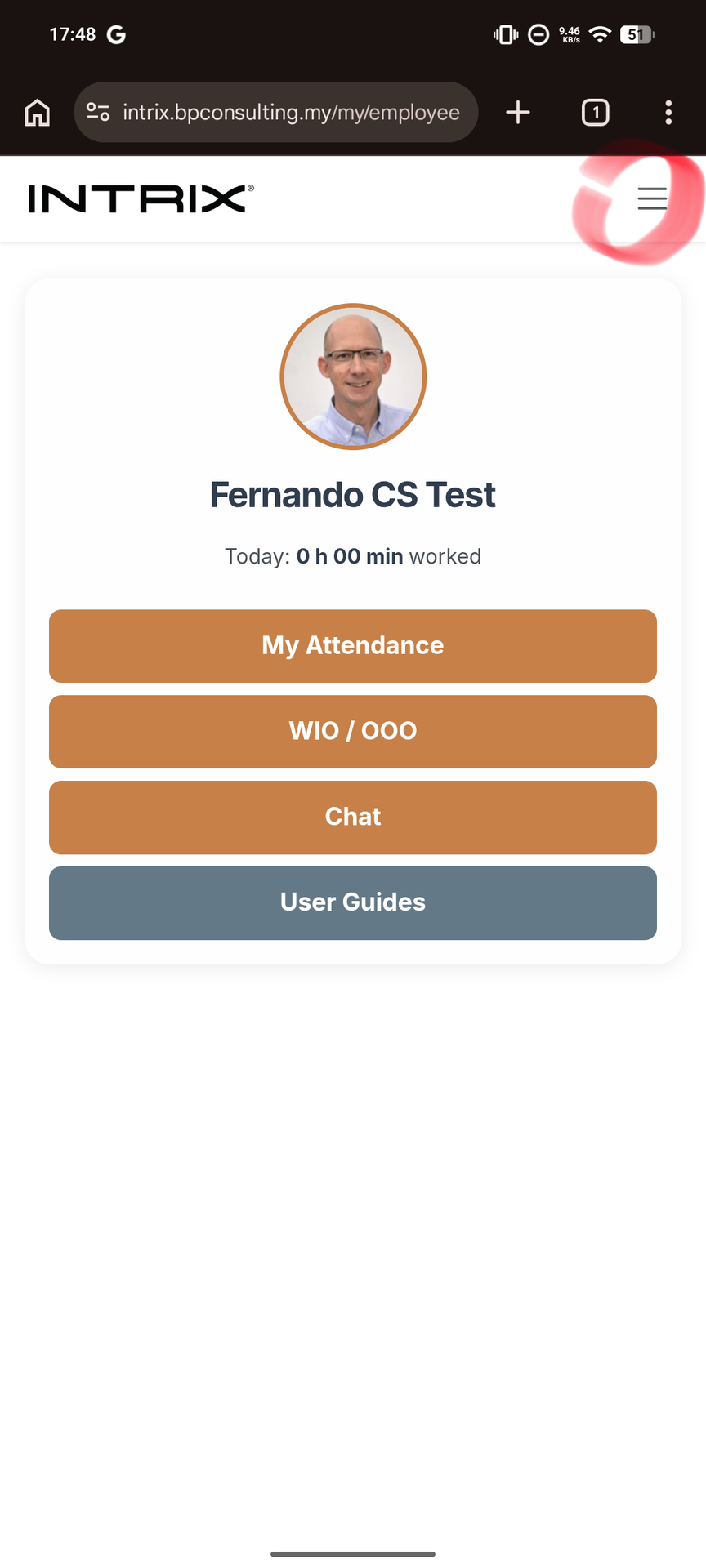
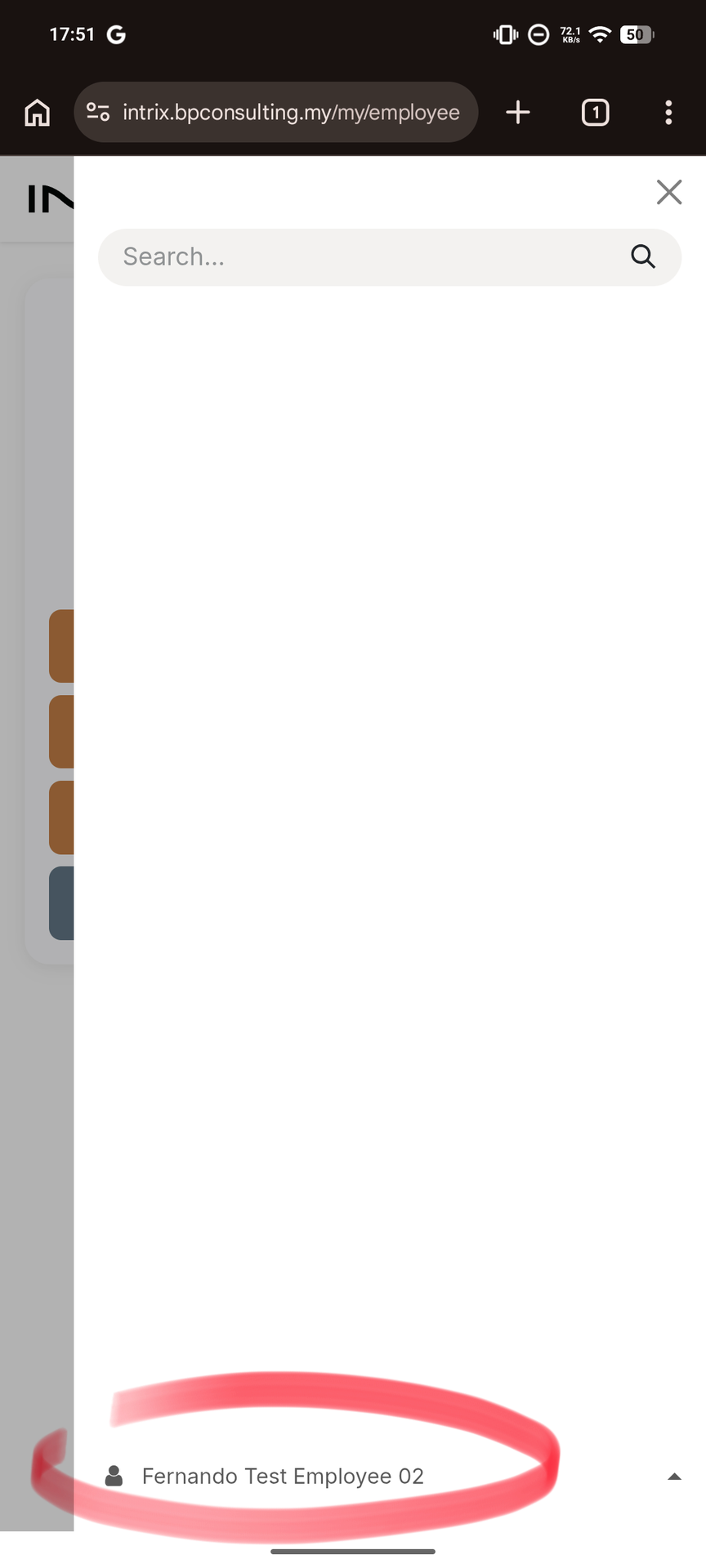
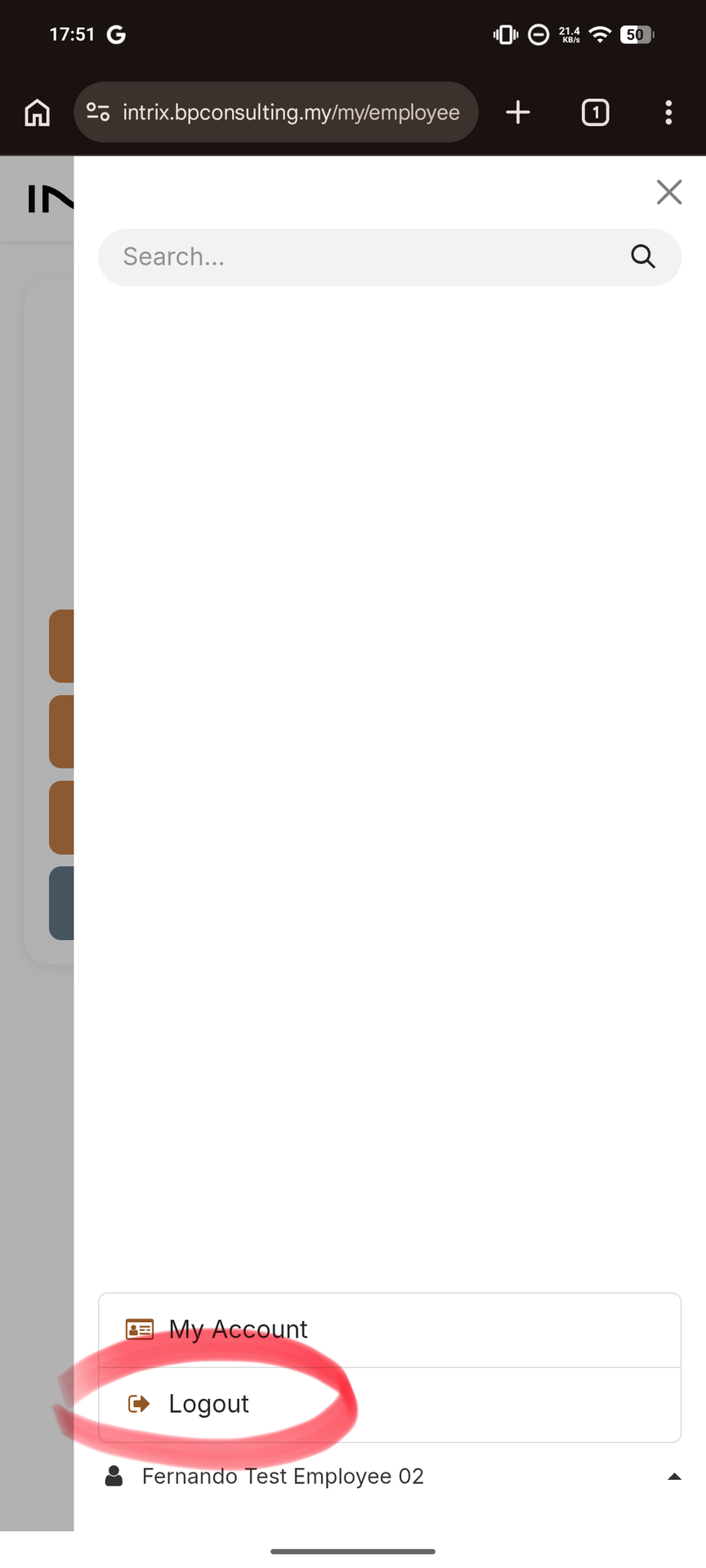
When you are done, always log out to keep your account secure. Tap on the three line icon at the top right of the screen, then tap on your user name, then on Log Out.
Troubleshooting
I cannot log in
Check that you are using your work email address (not a personal one) and that Caps Lock is not on. If the problem persists, contact your TnC department to reset your access.
The page looks broken or does not load
Try refreshing the page by pulling down on the screen. If the problem continues, clear your browser cache: go to your browser settings, find Clear Browsing Data, and clear cached images and cookies.
I was logged out automatically
For security, the system logs you out after a period of inactivity. Simply log in again.